On the Bitrix24 Market
WhatsApp, SMS and Viber inside your Bitrix24
VeloConnect for Bitrix24 is an app in the Bitrix24 Market. Your team answers customers from an inbox inside Bitrix24 and sends campaigns to the contacts you sync from it.
The Market listing is in Russian and Armenian. Stuck? Contact us, or use the support contacts on the listing.
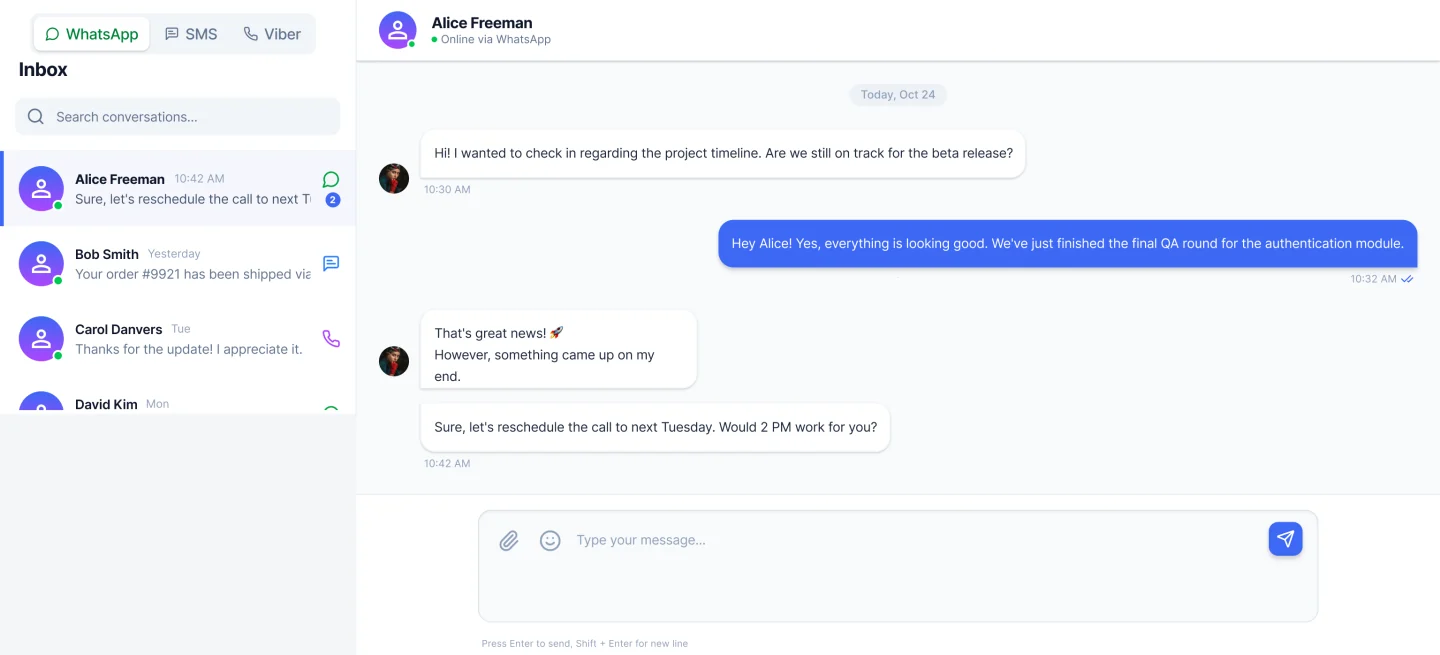
- One inbox for WhatsApp, SMS and Viber, with a tab per channel, search and unread counts
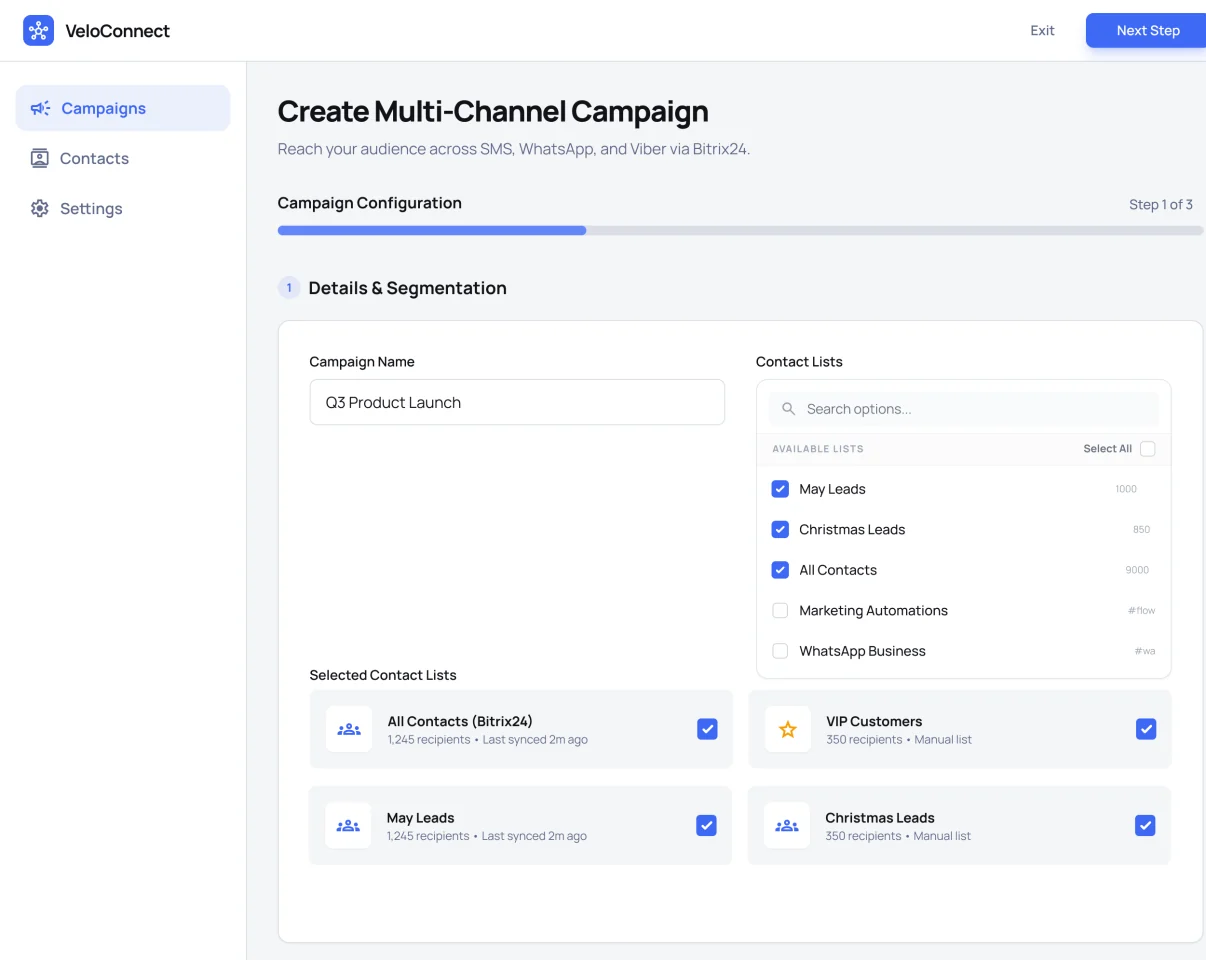
- Campaigns to contact lists synced from Bitrix24, in the channel order you choose
- Contacts copied one way, Bitrix24 to VeloConnect, through a field mapping you set
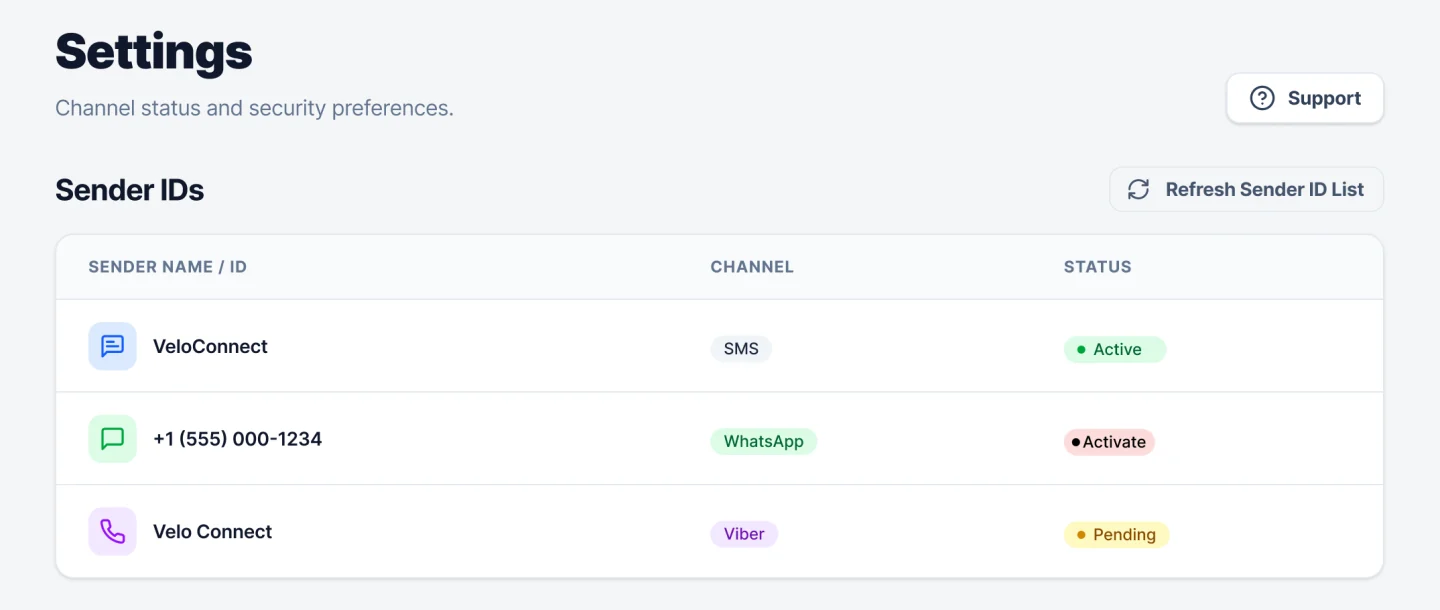
- Sender IDs for each channel with their status, and your API's IP allowlist, in the app's settings
Setup
Connect Bitrix24
-
Install from the Bitrix24 Market
A Bitrix24 administrator installs VeloConnect and approves the access it asks for: CRM, messaging, app embedding and the user list.
-
Connect your account
Open the app, enter your VeloConnect API key and choose “Connect Account”. No account yet? Create one from the same screen.
-
Check your sender IDs
Settings lists each sender with its channel and status. Only an active sender can send; senders are registered with VeloConnect.
-
Map fields and sync
Match your Bitrix24 contact fields to VeloConnect's — name, phone, email and more — and sync. Contacts copy one way, from Bitrix24.
-
Reply and send
Answer customers from the inbox, or build a campaign from your synced contact lists and set the order of channels to try.
In the app
Campaigns from your Bitrix24 lists
Name the campaign, pick the contact lists — the ones synced from Bitrix24 among them — and then set the order in which WhatsApp, Viber and SMS are tried.
In the app
See which senders can send
The app’s settings list every sender ID with its channel and status, and refresh the list on demand — so you know which senders are ready before a campaign goes out.
The app at a glance
Contacts do not copy back from VeloConnect to Bitrix24.
- Install
- From the Bitrix24 Market, by a Bitrix24 administrator
- Connect
- Your VeloConnect API key, entered in the app
- Channels
- WhatsApp, SMS and Viber
- Inbox
- Inside Bitrix24, a tab per channel, with search and unread counts
- Campaigns
- To contact lists synced from Bitrix24, trying channels in the order you set
- Contacts
- One way, Bitrix24 to VeloConnect, through a field mapping you set
- Senders
- Each sender ID with its channel and status; the list refreshes on demand
- Security
- An IP allowlist for your API, set in the app's settings
Bitrix24 questions
What does the Bitrix24 app do?
It gives your team an inbox for WhatsApp, SMS and Viber inside Bitrix24, and campaigns to the contacts you sync from it in the channel order you set. Contacts copy one way, from Bitrix24 to VeloConnect.
Who can install it?
A Bitrix24 administrator. Bitrix24 shows the access the app asks for — CRM, messaging, app embedding and the user list — before it is approved.
Do I need a VeloConnect account?
Yes. The app connects with your VeloConnect API key, and messages are sent through your account. If you do not have one yet, you can create it from the app’s connection screen.
Do changes in VeloConnect copy back to Bitrix24?
No. Contacts copy one way, from Bitrix24 to VeloConnect, through the field mapping you set in the app.
Bring WhatsApp, SMS and Viber into Bitrix24
Install the app, connect your VeloConnect account and answer customers where your team already works.